

 Typing Assistant
 FAQ
1. Why doesn't Typing Assistant work when I am typing?
2. How to enable/disable basic dictionary in real-time suggestion window?
3. How to delete an entry in Auto-Learn dictionary?
4. How to disable the Auto-Learn feature, but keep Auto-Learn suggestions?
5. How do I define Auto-Expand entries for myself?
6. How can I display the suggestion window at a fixed position, instead of following the caret?
7. How can I disable Typing Assistant real-time suggestion in a particular application?
8. How to add my own words/phrases to Auto-Learn dictionary?
9. How to prevent my password from learned and suggested?
10. How to access Custom Settings by keyboard?
11. What is the difference between quick settings for skilled / unskilled typist?
12. Where are the Typing Assistant dictionary files stored?
13. Typing Assistant shows "Open file error!" when I launch it, why?
14. An unwanted space is added when type accented character or punctuation in MS Office(Outlook, PowerPoint, ect), how to fix this?
15. How to uninstall Typing Assistant?
16. Typing Assistant can't complete suggestions in memoQ, how to solve this problem?
17. Failed to install Typing Assistant with error message "Error 740: The requested operation requires elevation.", how to fix this?
FAQ
1. Why doesn't Typing Assistant work when I am typing?
2. How to enable/disable basic dictionary in real-time suggestion window?
3. How to delete an entry in Auto-Learn dictionary?
4. How to disable the Auto-Learn feature, but keep Auto-Learn suggestions?
5. How do I define Auto-Expand entries for myself?
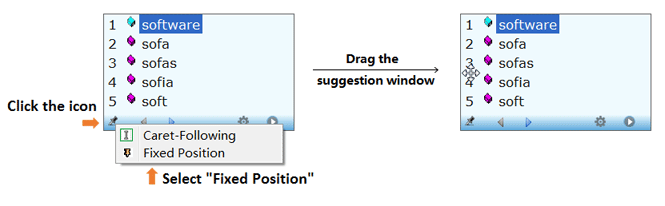
6. How can I display the suggestion window at a fixed position, instead of following the caret?
7. How can I disable Typing Assistant real-time suggestion in a particular application?
8. How to add my own words/phrases to Auto-Learn dictionary?
9. How to prevent my password from learned and suggested?
10. How to access Custom Settings by keyboard?
11. What is the difference between quick settings for skilled / unskilled typist?
12. Where are the Typing Assistant dictionary files stored?
13. Typing Assistant shows "Open file error!" when I launch it, why?
14. An unwanted space is added when type accented character or punctuation in MS Office(Outlook, PowerPoint, ect), how to fix this?
15. How to uninstall Typing Assistant?
16. Typing Assistant can't complete suggestions in memoQ, how to solve this problem?
17. Failed to install Typing Assistant with error message "Error 740: The requested operation requires elevation.", how to fix this?
 1. Why doesn't Typing Assistant work when I am typing?
- If the system tray icon of Typing Assistant shows
 , it means Typing Assistant is Disabled. You can enable it by double click the system tray icon, or press the Enable/Disable hotkey(it can be defined at "Custom Settings >> Hotkeys").
- If the system tray icon of Typing Assistant shows
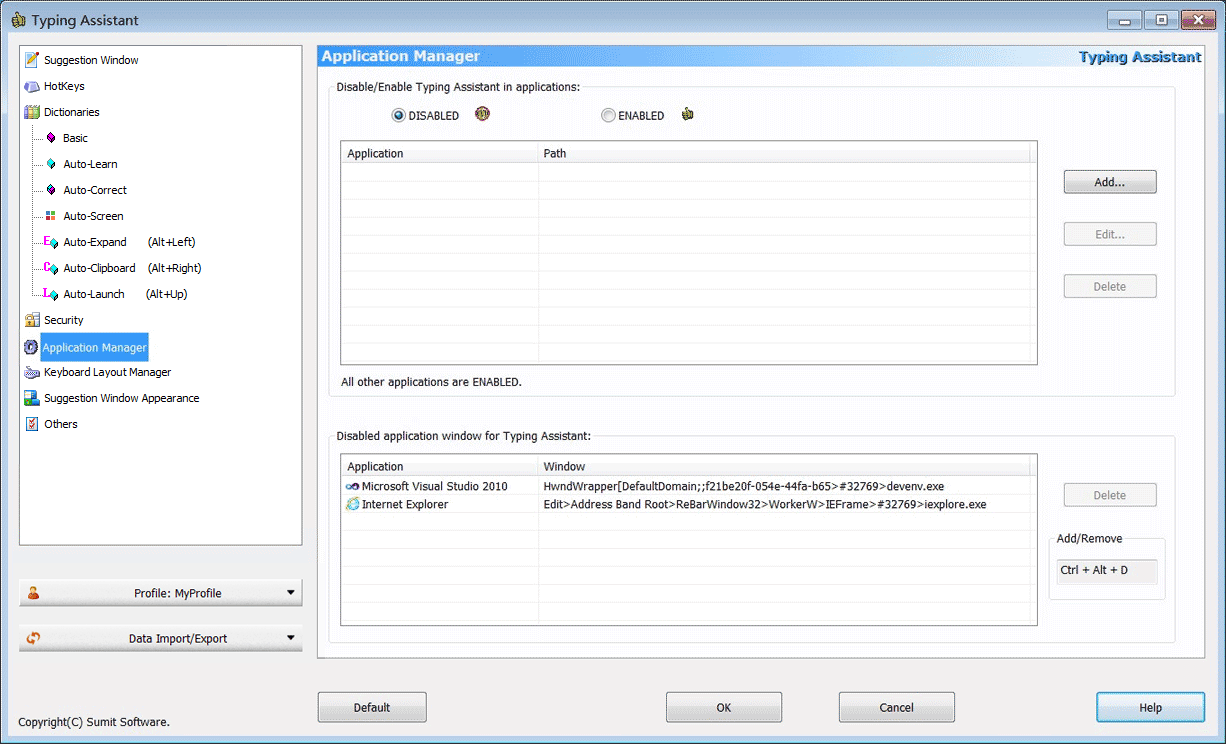
 , it means you are working at a Disabled application for real-time suggestion. You can specify this application enabled at "Custom Settings >> Application Manage".
see demo
, it means you are working at a Disabled application for real-time suggestion. You can specify this application enabled at "Custom Settings >> Application Manage".
see demo
- If the system tray icon of Typing Assistant shows
 , it means you are working at a Disabled application window for real-time suggestion. Just put the input focus on that window and press Ctrl+Alt+D(default hotkey) to enable it.
- If the system tray icon of Typing Assistant shows
 , it means you are working with a Disabled Keyboard Layout for real-time suggestion. You can specify this Keyboard Layout enabled at "Custom Settings >> Keyboard Layout Manage".
see demo
, it means you are working with a Disabled Keyboard Layout for real-time suggestion. You can specify this Keyboard Layout enabled at "Custom Settings >> Keyboard Layout Manage".
see demo

- If the system tray icon of Typing Assistant shows
 , it means you have disabled the real-time suggestion(you can enable it by set a value to "Custom Settings >> Suggestion Window >> Suggestion window display delay").
see demo
, it means you have disabled the real-time suggestion(you can enable it by set a value to "Custom Settings >> Suggestion Window >> Suggestion window display delay").
see demo

2. How to enable/disable basic dictionary in real-time suggestion window?
You can enable/disable the suggestions from basic dictionary by setting the option below:
"Typing Assistant main menu >> Custom Settings >> Dictionaries >> Basic >> Enable in real-time suggestion window". see demo
 3. How to delete an entry in Auto-Learn dictionary?
You can delete any entry that you don't want by either of the methods below:
3. How to delete an entry in Auto-Learn dictionary?
You can delete any entry that you don't want by either of the methods below:
-
Delete it at suggestion window. When the suggestion window is shown, press Right arrow key(or mouse right click on the entry) to show popup menu to delete the selected entry. see demo

-
Delete it at Typing Assistant Custom Settings. Open the Main Menu of Typing
Assistant, select "Custom Settings >> Dictionaries >> Auto-Learn", select the
entry and delete it. see demo

Or if you wish, you can simply ignore any entry you don't want. The priority of the entry will recede gradually if you don't type it any more, until finally it will no longer be suggested.
4. How to disable the Auto-Learn feature, but keep Auto-Learn suggestions?
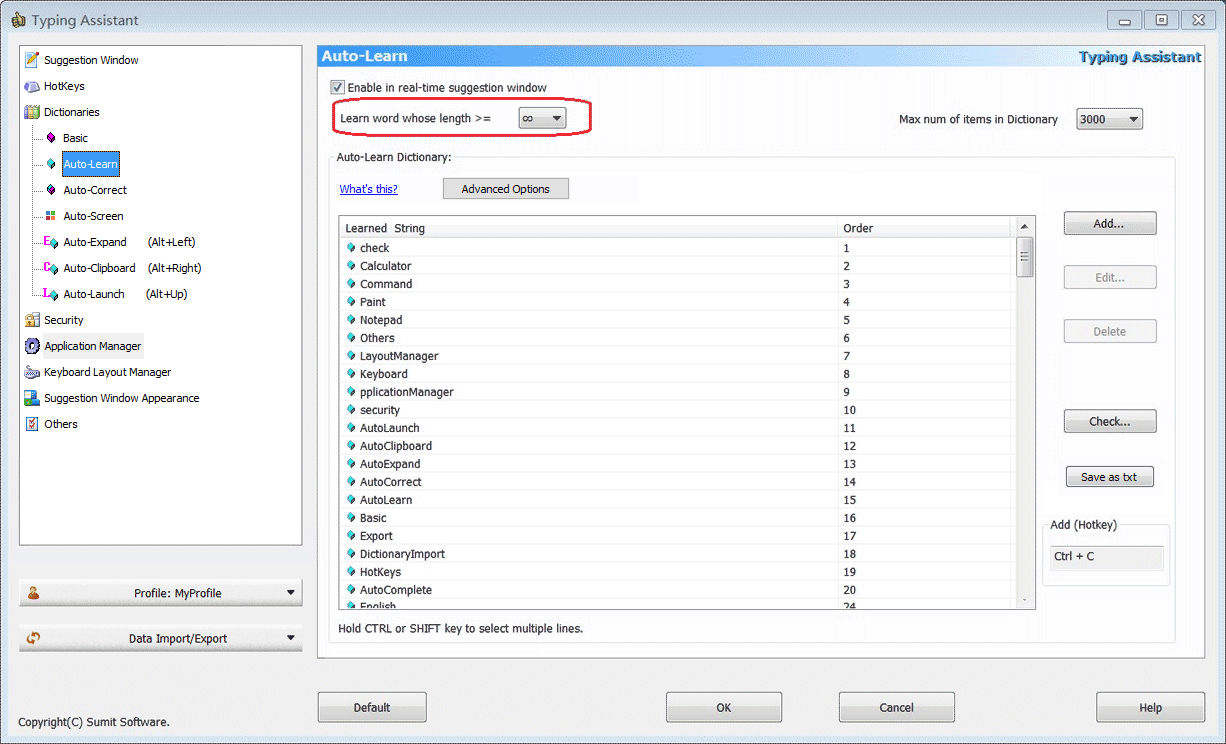
You can disable the Auto-Learn feature but keep Auto-Learn suggestions by setting the option below:
"Typing Assistant main menu >> Custom Settings >> Dictionaries >> Auto-Learn >> Learn word whose length >=  ". see demo
 5. How do I define Auto-Expand entries for myself?
You can do it by either of the methods below:
5. How do I define Auto-Expand entries for myself?
You can do it by either of the methods below:
-
Press Alt + Left to show Auto-Expand suggestion window, then press right arrow key(or mouse right click on the entry) to show popup menu to add a new entry.
-
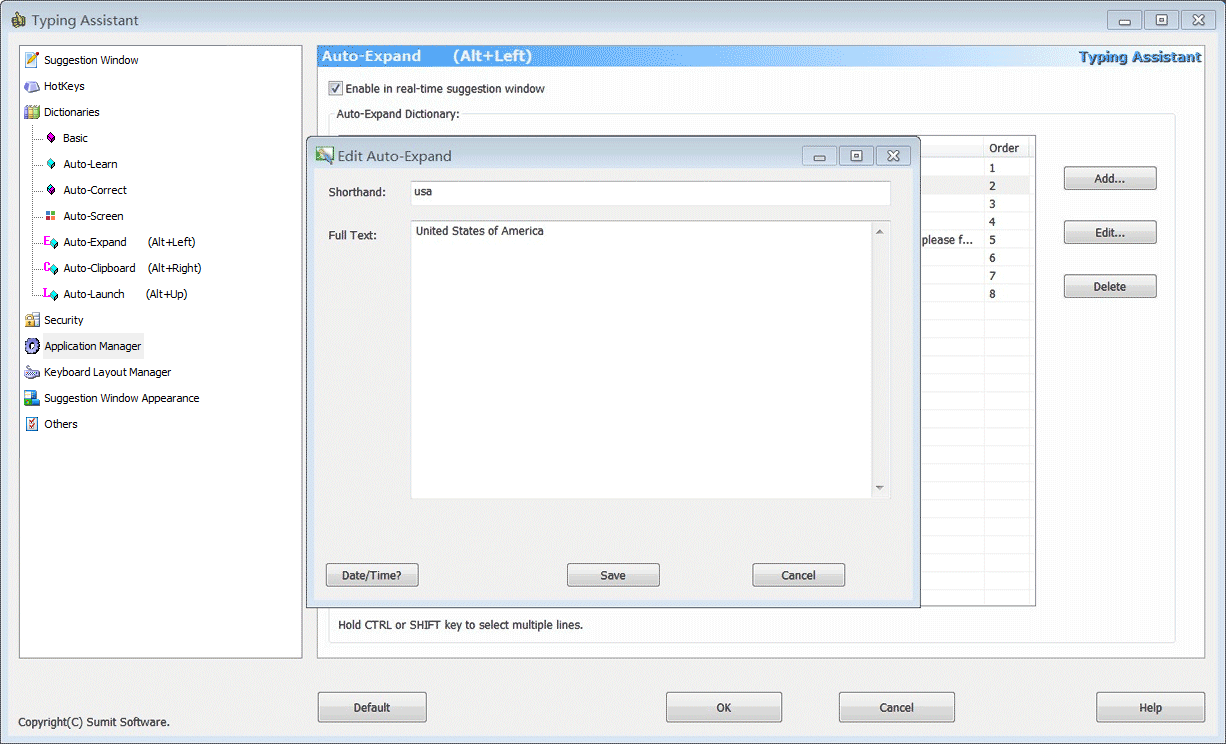
Open the Main Menu of Typing Assistant, select "Custom Settings >> Dictionaries >> Auto-Expand", click "Add" button, select "New Entry" menu item, then in the popup window you can enter both the Shorthand shortcut and the Full Text.see demo
6. How can I display the suggestion window at a fixed position, instead of following the caret?
see demo
Note:
In some special applications such as FireFox, caret-following can't work well because Typing Assistant can't get the accurate caret position.
 7. How can I disable Typing Assistant real-time suggestion in a particular application?
Open the Main Menu of Typing Assistant, select "Custom Settings >> Application Manage", click "Add" button, you can browse and select an executable file, or select an application which is already running. see demo
7. How can I disable Typing Assistant real-time suggestion in a particular application?
Open the Main Menu of Typing Assistant, select "Custom Settings >> Application Manage", click "Add" button, you can browse and select an executable file, or select an application which is already running. see demo
 8. How to add my own words/phrases to Auto-Learn dictionary?
You can do it by either of the methods below:
8. How to add my own words/phrases to Auto-Learn dictionary?
You can do it by either of the methods below:
-
Select the word/phrase, then press Ctrl+Win(default hotkey) to collect it to Auto-Learn dictionary.
-
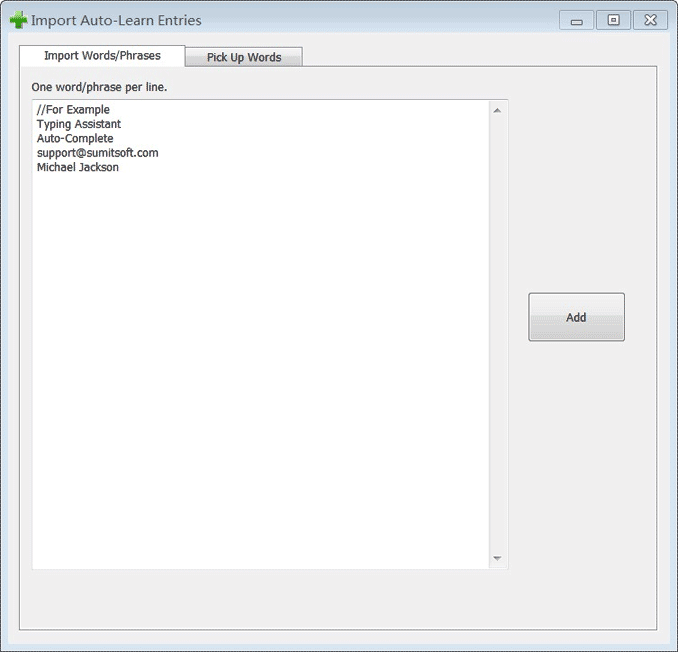
Open the Main Menu of Typing Assistant, select "Custom Settings >> Dictionaries >> Auto-Learn", click "Import... " button, in the popup window you can add your own words/phrases to Auto-Learn dictionary, or just copy some texts from any other place and Typing Assistant can pick up the words for you.see demo
9. How to prevent my password from learned and suggested?
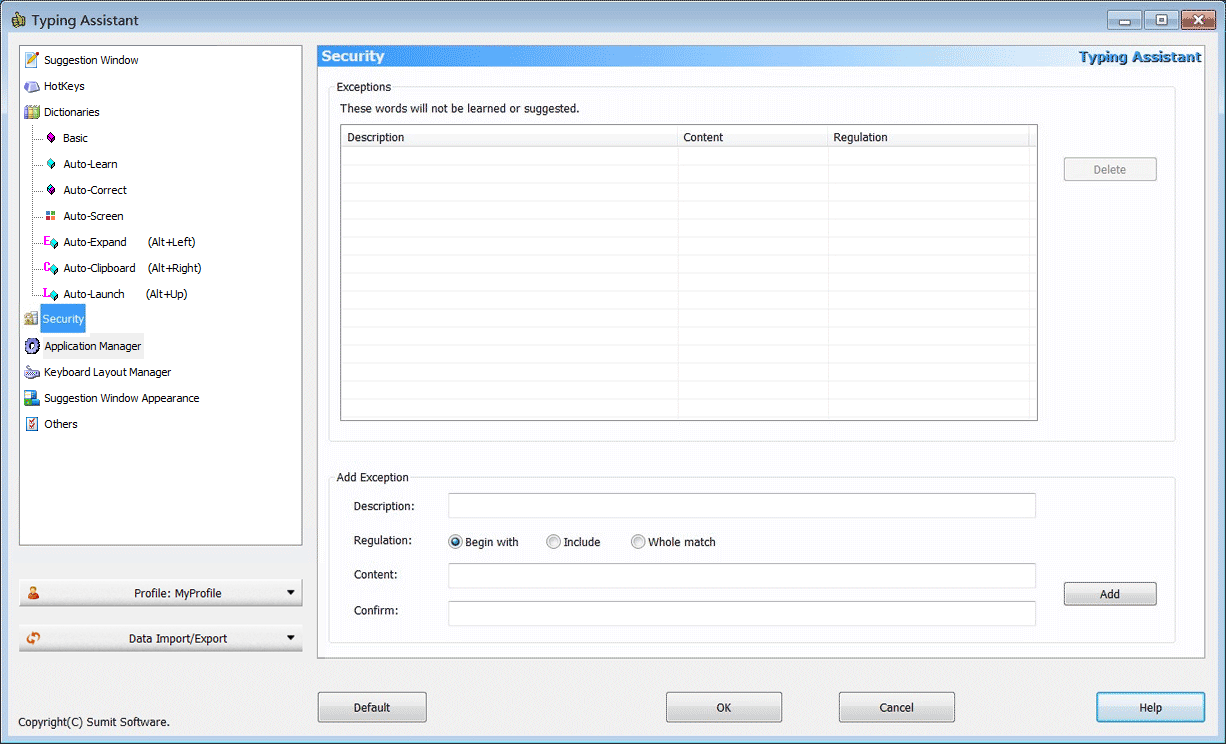
Open the Main Menu of Typing Assistant, select "Custom Settings >> Security", you can add an exception for your password. For example, if your password is "mypwd123", you can add an exception as one of the following:
- Regulation="Begin with" and Content="my".
- Regulation="Include" and Content="yp".
- Regulation="Whole match" and Content="mypwd".
see demo
 Notes:
- The exception is saved by Typing Assistant with encryption.
- You needn't define the exception for digital part of your password, digital will never be learned or suggested.
10. How to access Custom Settings by keyboard?
Keyboard accessibility is supported for Custom Settings from v4.2:
- Ctrl+Alt+P(default): open Custom Settings
- Up/Down: select tree item
- Enter: enter a property page
- Tab: slide focus on controls
- Esc: leave a property page
11. What is the difference between quick settings for skilled / unskilled typist?
Here is the difference in Custom Settings for skilled / unskilled user:
- Custom Settings >> Suggestion Window >> Show suggestions after type how many letter(s)?
Value = 3 / 1
see demo

- Custom Settings >> Suggestion Window >> Suggestion window display duration
Value = 5 sec /
see demo

- Custom Settings >> Dictionaries >> Auto-Learn >> Learn word whose length >=
Value = 8 / 5
see demo

12. Where are the Typing Assistant dictionary files stored?
You can find the Typing Assistant dictionary files here:
- Version 5.0 or higher
[Installed version]
Windows XP or lower:
C:\Documents and Settings\{your user name}\Application Data\{Typing Assistant install directory}\Lib\
Windows Vista:
C:\Users\{your user name}\AppData\Local\VirtualStore\Program Files\{Typing Assistant install directory}\Lib\
Windows 7/8:
C:\Users\{your user name}\AppData\Roaming\{Typing Assistant install directory}\Lib\
[Portable version]
...\{Typing Assistant install directory}\Lib\
- Version 4.x or lower
[Installed version]
Windows XP or lower:
...\{Typing Assistant install directory}\Lib\
Windows Vista:
C:\Users\{your user name}\AppData\Local\VirtualStore\Program Files\{Typing Assistant install directory}\Lib\
Windows 7/8:
C:\Users\{your user name}\AppData\Roaming\{Typing Assistant install directory}\Lib\
[Portable version]
...\{Typing Assistant install directory}\Lib\
13. Typing Assistant shows "Open file error!" when I launch it. Why?
Typing Assistant will copy some data files to drive C of your computer when you install it. When the program launches it will load those data files. Message "Open file error!" means Typing Assistant can't find those data files. Perhaps it is because your OS rejects the installer copying data files to your drive C.
If you encountered this problem, you can try this - use the portable version of Typing Assistant, not the installed version. The portable version will save its data files at the program directory, not drive C.
14. An unwanted space is added when type accented character or punctuation in MS Office(Outlook, PowerPoint, ect), how to fix this?
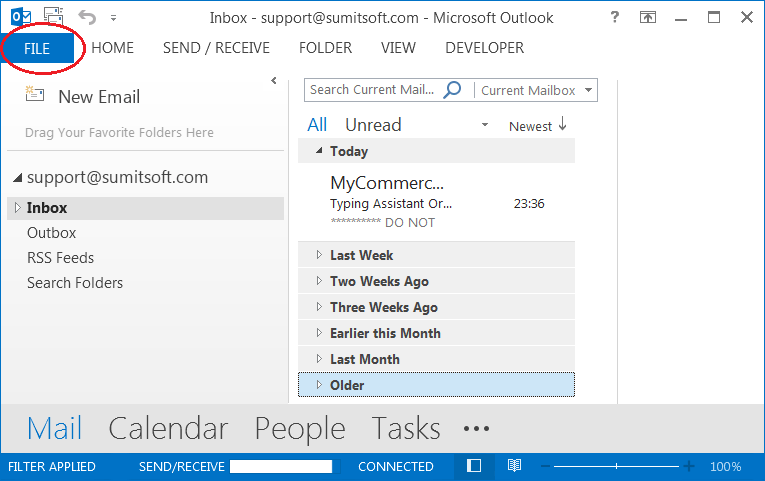
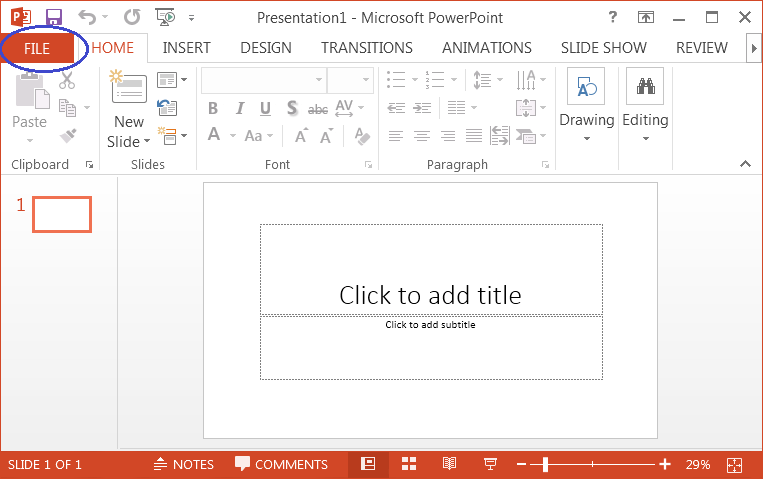
Typing Assistant needs to hook the characters user typed. Because of the special processing mode in MS Office, there will possibly add an extra space before the accepted character or punctuation. You can disable an option in MS Office to avoid this problem.
Notes:
- We settled this problem in MS Word from Typing Assistant 7.0.
- The demo below is for Office 2013. You can find similar option in other Office version.
see demo for Outlook 2013
see demo for PowerPoint 2013



 15. How to uninstall Typing Assistant?
Please follow the steps below.
15. How to uninstall Typing Assistant?
Please follow the steps below.
- [Step1]: Exit Typing Assistant if it is running.
see demo

- [Step2]: Uninstall Typing Assistant.
[Installed version]: Open Windows Control Panel >> Add and Remove Programs, find Typing Assistant and uninstall it.
[Portable version]: Just find Typing Assistant folder (usually named "TypingAssistant_USB") and delete all files in it. If some files can't be deleted directly, please restart your computer and delete again.
16. Typing Assistant can't complete suggestions in memoQ, how to solve this problem?
Typing Assistant can show suggestions but you can't complete it by ENTER key in memoQ, if you get this problem, there is an inside tip: select some text in memoQ and press Ctrl+C, then Typing Assistant will return to work. You just need to do this once. That means, make your Windows clipboard been filled with some text, instead of empty or other type of content; it is hard to explain the reason, but the method works.
17. Failed to install Typing Assistant with error message "Error 740: The requested operation requires elevation.", how to fix this?
Mouse right-click on the Typing Assistant setup file, then select Run as Administrator.
 Home
Home